

Tested with Circuitera 1.0.0: the article’s complete C++ sketch compiled for Arduino Uno R3 using avr-gcc-wasm@0.2.0 on 2026-10-26 (UTC). The sketch also passed its recorded Uno model checks. No physical board was tested.
Decide what the signal represents
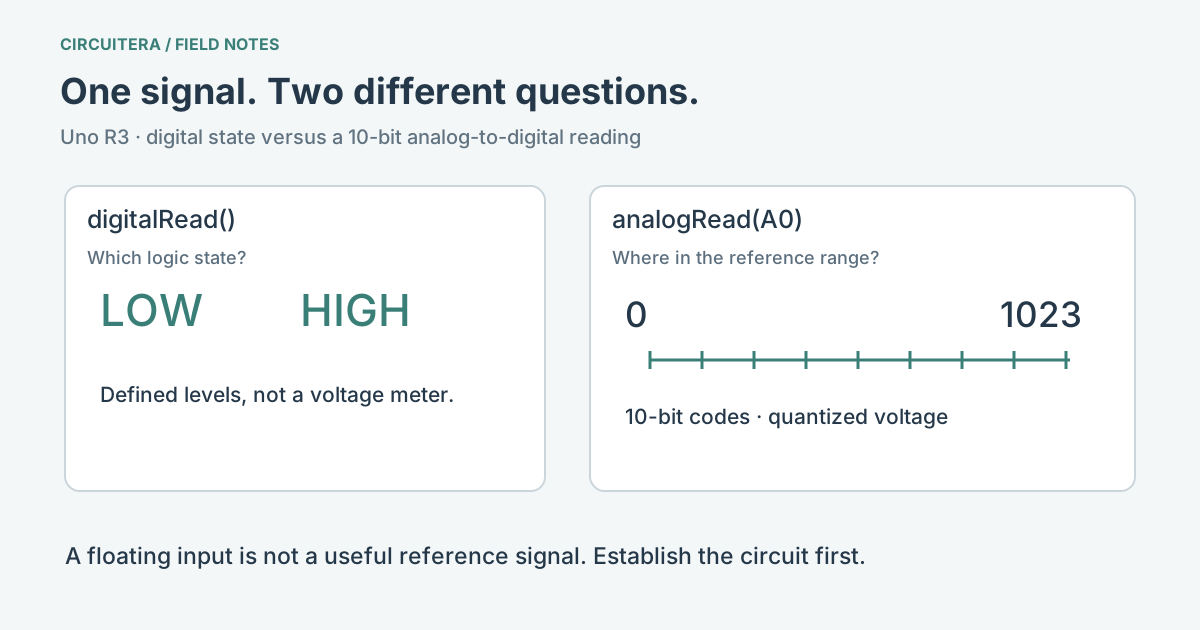
Use digitalRead() when the question is “is this input LOW or HIGH?” Use analogRead() when the question is “where is this voltage within the ADC input range?” The first returns a logic state; the second returns a number. Neither function identifies the physical sensor or converts its value into temperature, light or distance for you.
A button with a pull-up is a useful digital example: released reads HIGH and pressed reads LOW. A potentiometer is a useful analog example: its wiper moves through a range of voltages as you turn it. Reading the potentiometer digitally throws away most of that information and is unstable near a logic transition.
What the Uno’s number means
The Uno R3 has a 10-bit ADC, so a normal reading is between 0 and 1023. With the default reference, that range is measured relative to the board’s supply/reference arrangement, nominally 5 V. These are quantized codes, not an exact voltmeter. Supply variation, reference choice, noise and sensor loading affect the result. The analogRead reference describes the API and board differences.
For an ideal 5 V reference, one ADC step is about 5/1024 V, or 4.9 mV. Do not report many decimal places of voltage as if the board had measured them. If you need an accurate voltage, establish the actual reference and the limitations of your measurement circuit first.
Read a button and a voltage together
On an Uno, wire a button between D2 and GND. Wire a potentiometer’s outer terminals to 5 V and GND and its wiper to A0. Use the potentiometer project for a complete visual circuit; the sketch below adds a pull-up button reading alongside the ADC value.
void setup() {
  pinMode(2, INPUT_PULLUP);
  Serial.begin(9600);
}

void loop() {
  const bool pressed = digitalRead(2) == LOW;
  const int sample = analogRead(A0);
  Serial.print(pressed ? "pressed," : "released,");
  Serial.println(sample);
  delay(100);
}
Set Serial Monitor to 9600 baud. Turning the knob should change the numeric field; pressing the button should change the word. If the number wanders while the potentiometer is disconnected, that is a floating input, not evidence of a hidden signal. If the button state reverses your expectation, remember that this circuit is active LOW.
The pin label does not choose the API for you
Uno A0–A5 can also act as digital inputs. Conversely, calling analogRead() does not add an ADC to any arbitrary digital pin. Use named analog pins such as A0 to make the intent clear. Classic Nano A6 and A7 are analog-only, an exception described in the digitalRead reference. Other Nano-branded boards are different products, so check the exact board profile, not just the family name.
An analog input must stay within the permitted electrical range. A 5 V Uno example is not permission to feed 5 V into a 3.3 V board. Use a suitable interface for the particular board and signal. Software cannot repair an overvoltage connection.
Separate reading, interpretation and output
First print the raw value. Then add a threshold or a conversion only after you understand the observed range. For a light alarm, for example, decide which raw values correspond to the conditions you care about; the threshold is part of your application, not a universal ADC constant. If values chatter around that threshold, hysteresis or filtering may be appropriate.
The Uno simulator can demonstrate a modeled knob and button, while the Serial Tools page explains how to inspect output from hardware. A simulated reading and a successful compile are useful checks, but neither certifies the accuracy of a physical sensor.
Sources and verification
Technical references were reviewed for this article. Board behavior is scoped to the named core and profile; follow a component’s actual datasheet when wiring hardware.