CONTEXT · EXPLANATION · REVIEW
A second perspective on your circuit.
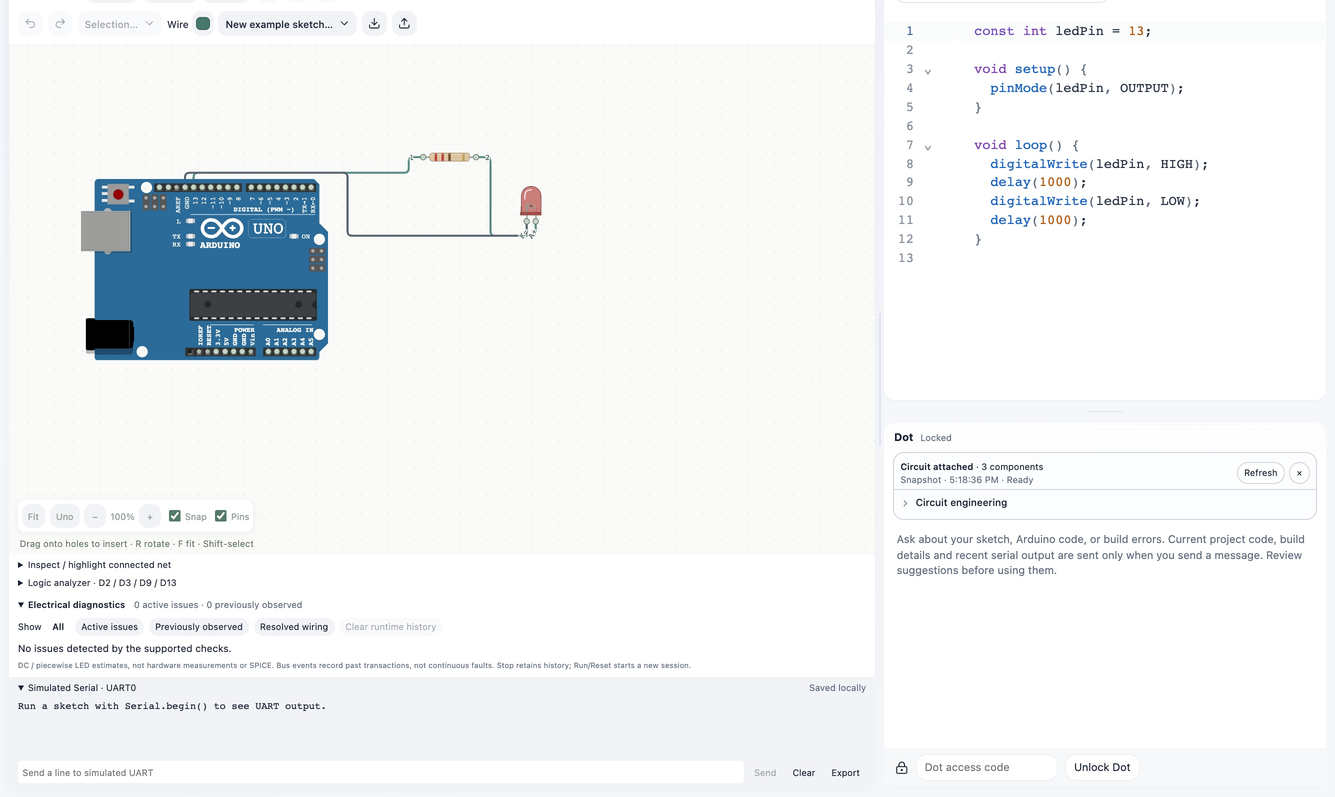
Ask Dot about code, compiler diagnostics, and attached circuit context inside the Circuitera workspace.
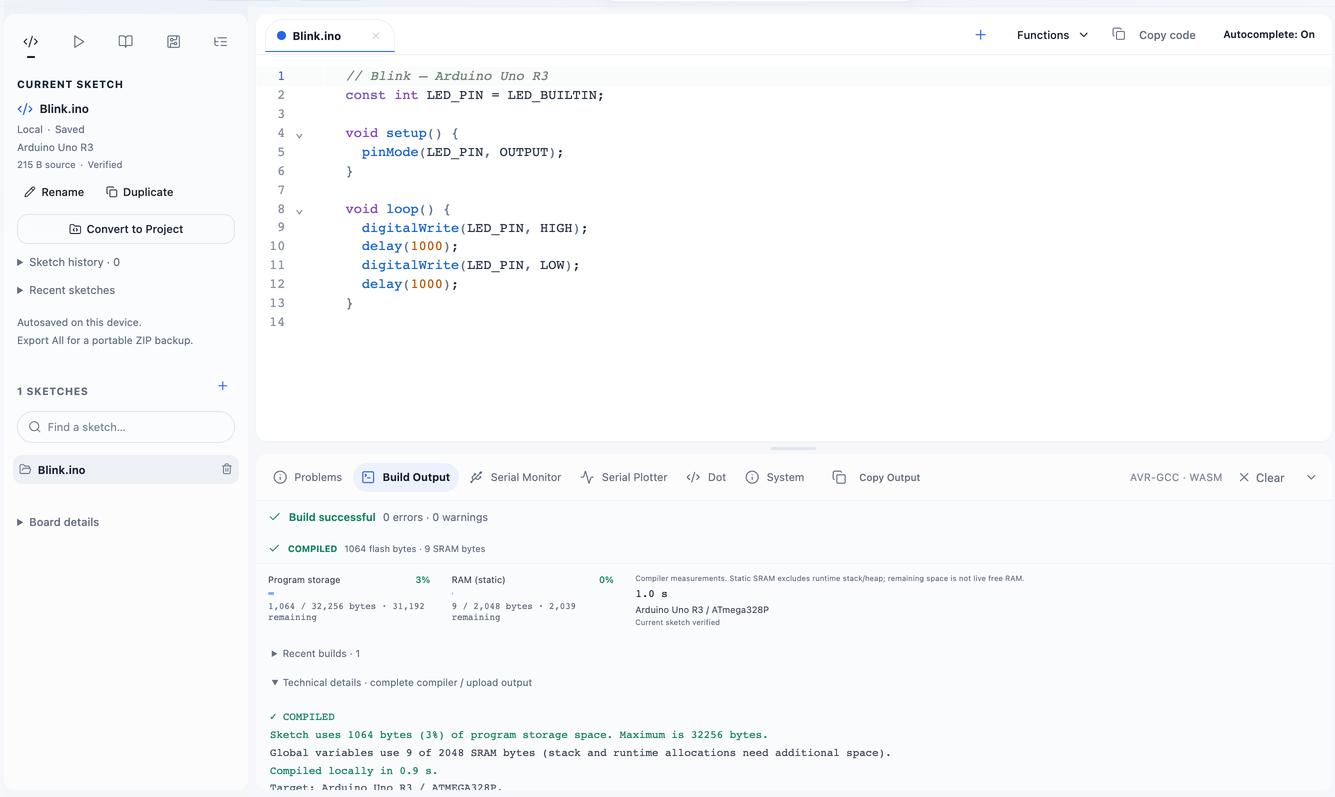
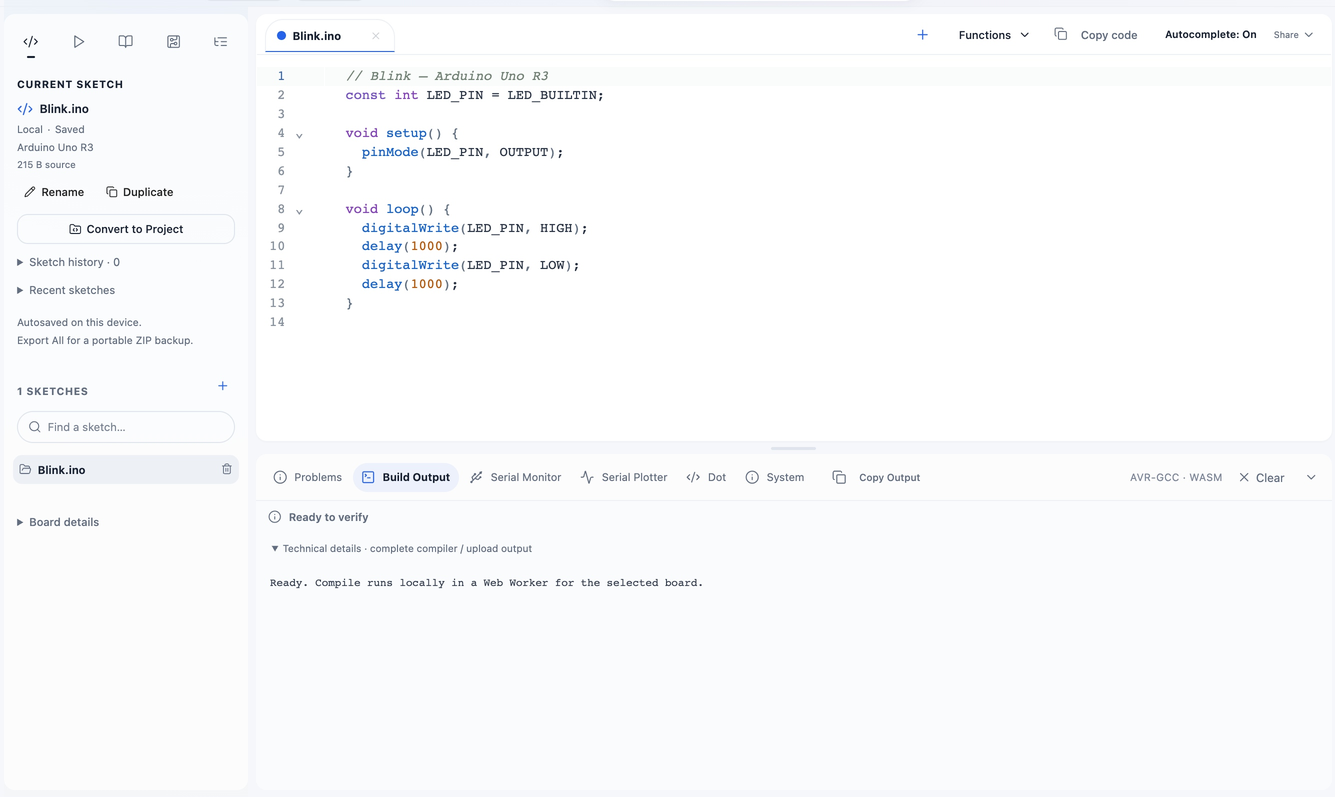
Start with the actual context
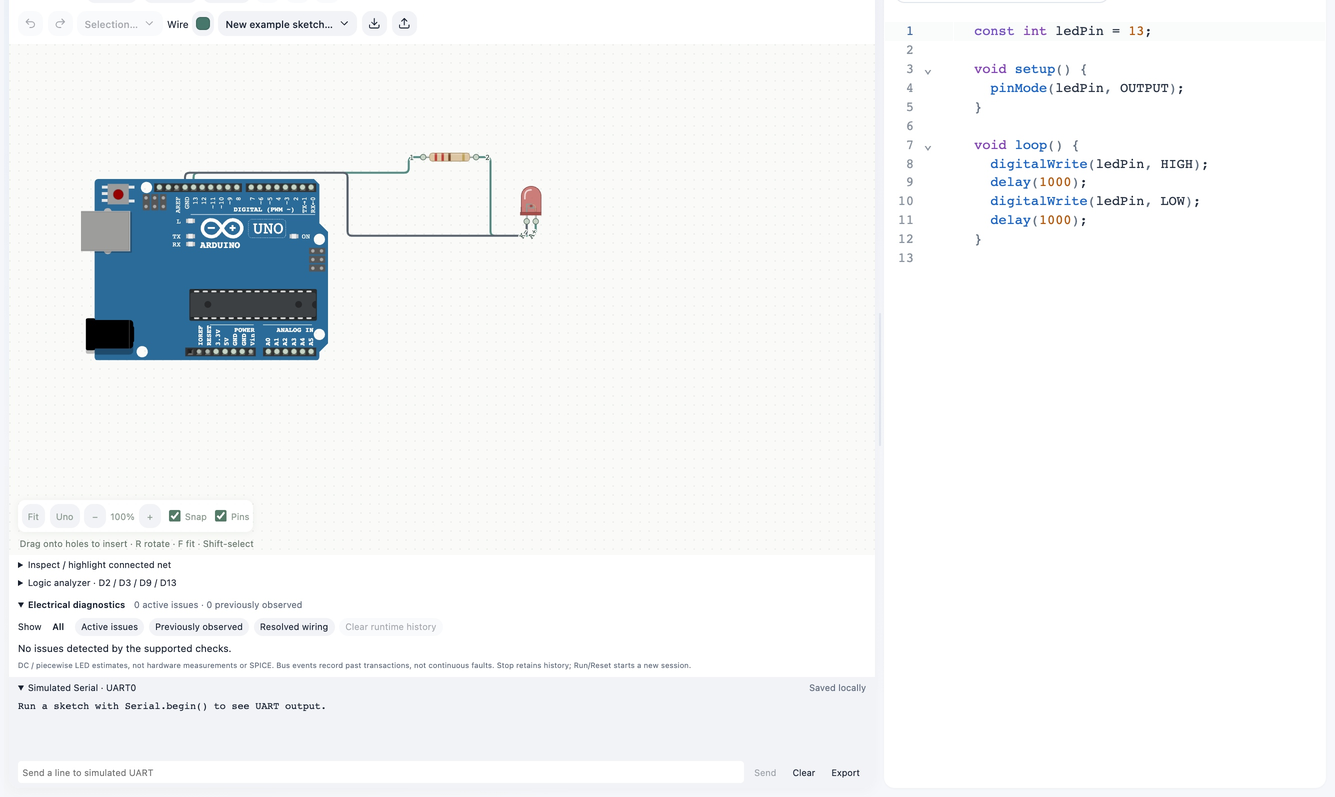
Ask about selected code or a compiler error, or attach a circuit snapshot. Refresh the snapshot when the design changes so the discussion reflects the circuit you are working on.
Engineering tools, close to your work
Build Circuit, Analyze Circuit, Analyze Signals, Generate Tests, and Project Health use the existing engineering pipeline. Review generated proposals, diffs, diagnostics, and suggested tests before applying changes.
Keep control of your project
Generated text and code can be wrong or incomplete. Verify pin assignments, libraries, component values, and electrical safety yourself. Circuitera validates required proposal fields before offering an applicable circuit change.
Access and availability
Dot uses the existing Gemini integration through Firebase AI Logic and App Check. Dot’s access gate remains separate from public Projects. Network availability, access, and service usage limits still apply.
Make a start.
- Open Dot or attach a circuit from Simulation.
- Ask a focused question with the current code or circuit context.
- Review the response, apply intentional changes, and Verify again.
Good to know.
Are generated circuit proposals applied automatically?
Review and confirmation remain part of the existing engineering flow. An incomplete proposal must be corrected before application.
Is Dot available offline?
No. Its configured AI service requires a network connection and valid access. The local editor and prepared compiler are separate.